
Preview, export and download your dub
Once your dub is ready, this article shows you how to preview it, pick the right export, and download the files for your channels.
Preview
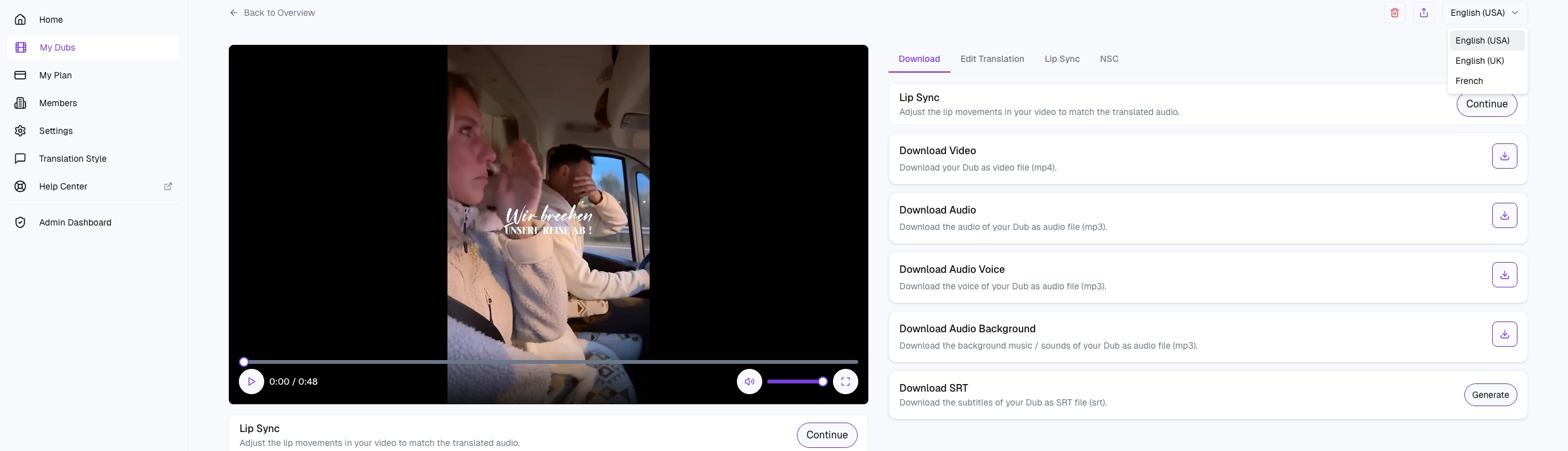
Open the finished dub. The video player at the top of the dub detail page plays the dubbed result with synced audio. Use it to:
Scrub through the whole video to spot-check the dub.
Switch between target languages using the dropdown at the top of the page — each language is its own preview.
Toggle the Lip-Synced view (if you ran Lip-Sync on that language) to compare with the non-lip-synced version.
No download is needed to preview — everything streams directly in the browser.
Download options
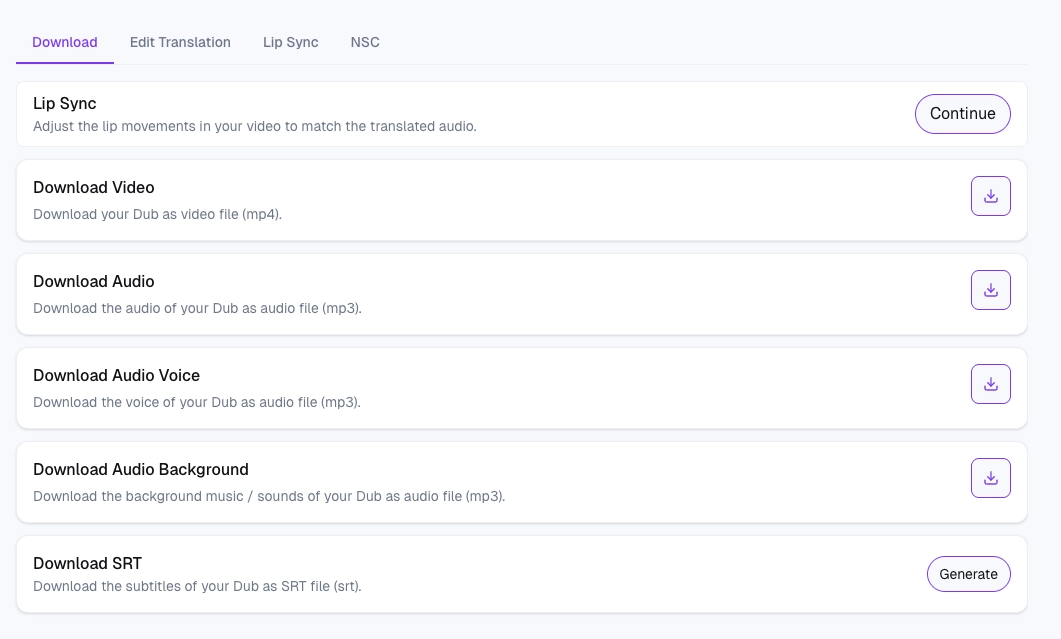
Open the Download tab. For each target language, you'll see separate download buttons for different formats:
Video (MP4) — the dubbed video, ready to publish.
Lip-Sync Video (MP4) — the version with lip-synced mouth movement. Only appears if you've run Lip-Sync on this language.
Audio (MP3) — the full dubbed audio track (voice + music + effects), useful if you want to re-edit the video yourself.
Voice only (MP3) — just the dubbed voice, no music or effects. Handy when you want to re-mix the audio in your own editor.
Background (MP3) — the original music and sound effects without any voice. This one is shared across all target languages (no language suffix on the filename).
SRT subtitles — generated on-demand (see below).
You get one of each per target language. A dub with three target languages gives you three videos, three MP3s, three voice-only tracks, three SRTs — plus one shared background track.
Downloading subtitles (SRT)
The SRT file isn't ready by default — generate it first:
On the Download tab, open the SRT card for the language you want.
Click Generate. The card shows a "generating" state.
When generation finishes (usually under a minute), a Download button appears.
Click Download to save the
.srtfile. SRT files contain the translated subtitles, timestamped to match your dubbed audio — upload them directly to YouTube, Vimeo, or bake them into your editor.
Troubleshooting
If a download doesn't start, the file is blank, or you hit an error, see Download/Export issues for fixes.